Robpod Studio 1.3.5 Is Here: Multi-Select HMI Editing, Deeper Customization, and AI CoWorker for Polyscope X
Robpod Studio keeps getting better at helping you build smarter, more flexible robot programs — and version 1.3.5 is no exception. This release focuses on speeding up your HMI design workflow, giving you finer control over how your panels look, and extending Robpod AI CoWorker to Universal Robots’ newest platform, Polyscope X.
Here’s everything that’s new.
1. Multiple Selection in the HMI Designer
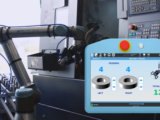
If you’ve used HMI Designer before, you know it’s the tool inside Robpod Studio for building custom user interface panels for your robot programs — no need to touch complex UI frameworks. You simply drag and drop components onto a canvas, link them to robot variables and functions, and preview the result directly on the teach pendant or in a desktop viewer.
With 1.3.5, designing panels just got a lot faster. You can now select multiple HMI components at once and move them together as a group. Previously, repositioning or aligning a group of buttons, labels, or indicators meant dragging each element one at a time — tedious work once your panel starts to grow. Now you can box-select or shift-click the elements you need, and reposition, align, or nudge them all in a single action.
This might sound like a small quality-of-life change, but for anyone building panels with dozens of components — dashboards, control grids, multi-step production interfaces — it’s a real time-saver, and it makes iterating on layout far less frustrating.

2. More Customization Options for HMI Components
Alongside multi-select, this release adds new customization properties to HMI components, giving you more control over the look and feel of your panels. One of the most requested additions: you can now change the color of button components directly from the properties panel, rather than being limited to the default styling.
Together with the other new styling options introduced in this release, this makes it easier to build panels that match your company’s branding, highlight critical controls with color coding, or simply create a more polished, professional interface for operators on the shop floor.


3. Robpod AI CoWorker Now Available for Polyscope X
The other big addition in 1.3.5 is on the AI side: Robpod AI CoWorker now supports Universal Robots’ Polyscope X, in addition to Polyscope 3 and Polyscope 5.
If you’re not familiar with it, AI CoWorker is Robpod’s tool for turning your collaborative robot into an AI agent. It acts as a bridge between your physical robot and an AI assistant, giving that assistant a set of actions it can use to interact with the robot — saving positions, moving to waypoints, retrieving diagnostic data, and more. Because AI CoWorker is built on the open MCP protocol, it works with virtually any AI provider that supports MCP, including ChatGPT, Claude, and Mistral AI. And when the built-in actions aren’t enough, you can use Robpod Studio to build fully custom AI projects, writing your own robot functions in the same language your robot already uses (Polyscope, URScript, DRL, etc.) to extend what your AI assistant can do.
How to use AI CoWorker with Polyscope X
Getting AI CoWorker running on a Polyscope X robot follows the same straightforward setup as other supported robots:
- Download and install AI CoWorker on your PC.
- Install the Robpod Plugin (URCAPX) on your Universal Robots controller.
- Connect your AI provider. Configure AI CoWorker with the assistant of your choice — ChatGPT, Mistral AI, Claude Desktop, LM Studio, or any other MCP-compatible client — following the provider-specific setup guide.
- Start interacting with your robot through your AI assistant, using the default actions or any custom actions you’ve built in Robpod Studio.
With this update, Polyscope X users get the same AI-driven workflow already available on Polyscope 3 and 5, making it easier to bring conversational, AI-assisted control to the latest generation of UR robots.


Get Robpod Studio 1.3.5
As always, we’d love to hear what you think — happy building!